
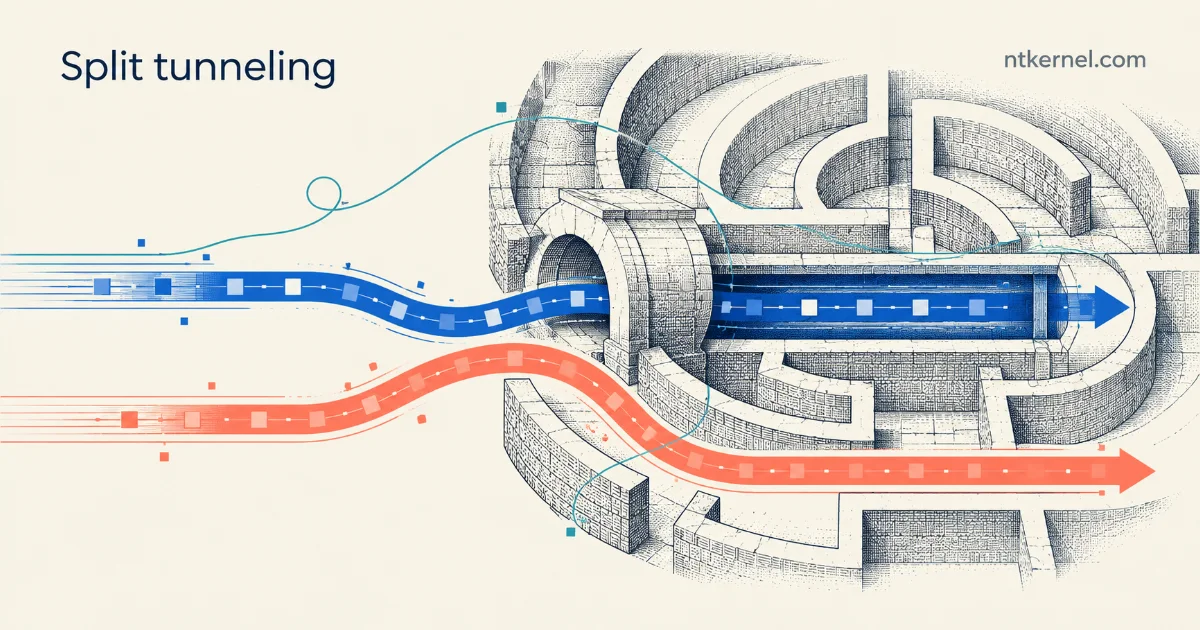
Suppose you want qBittorrent to use a WireGuard VPN while your browser and other applications keep using the ordinary connection. Selecting qBittorrent in WireSock solves the routing part. There is one more useful step: tell qBittorrent which network interface it is allowed to use, so it does not simply follow the normal connection when the tunnel is unavailable.
This guide combines WireSock’s application rule with qBittorrent’s interface binding. We’ll prepare the profile in WireSockUI, connect the tunnel, and then tell qBittorrent to use that adapter.
Two controls, different jobs
- WireSock’s application rule selects qBittorrent and the destinations to tunnel. Other applications are outside this selected application policy.
- qBittorrent’s interface binding constrains its BitTorrent session to the chosen VPN adapter. It is an additional control to test when the connection drops, not a substitute for the application rule.
For this setup, use virtual adapter mode: it gives qBittorrent an interface to select. Transparent mode supports application selection too, but supplies no VPN adapter to bind to. Both modes use Windows Packet Filter. Virtual mode adds an adapter and changes routing, so check ordinary applications as well as the VPN client after configuring it.
Install the matching components
The steps below follow WireSockUI 0.3.13 and the qBittorrent 5.x interface on Windows. WireSockUI is a small, direct-SDK front end; it is separate from the full WireSock Secure Connect desktop application and its service.
- Install the architecture-matched WireSock Secure Connect CLI/SDK, then the matching WireSockUI MSI. The release instructions cover package variants and checksums. Use the MSI installer and its protected installation location.
- Run WireSockUI with administrator privileges because WireSock’s drivers restrict access to elevated processes. The standard WinpkFilter build requires administrator privileges for installation, but not for use afterward. WireSockUI also needs the .NET Framework version specified for its architecture.
- Install qBittorrent from its official download page and obtain a working WireGuard profile from your server or provider. Keep that profile private.
- Use one tunnel controller at a time. Do not start a separate WireSock CLI session, service or full desktop client alongside WireSockUI; direct-SDK clients share ownership of the driver session.
Select qBittorrent in the profile
Keep qBittorrent closed while preparing the connection. Import your existing profile with Add Tunnel, then edit it. Replace any existing AllowedApps selection with qbittorrent in the existing [Peer] section; appending another application line can retain earlier selections. Confirm that the existing AllowedIPs covers the intended address families and review any DisallowedApps or DisallowedIPs exclusions. Enable virtual mode in [Interface]. Do not append a second copy of either section.
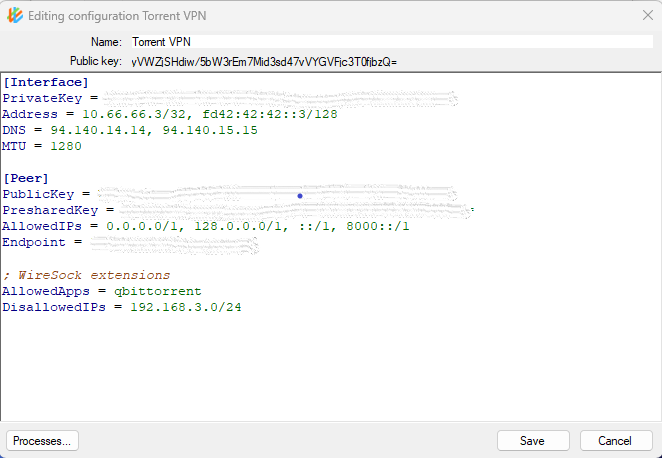
This example shows the placement. It is not a ready-to-connect profile: replace the keys, endpoint, tunnel addresses and DNS server with your own server’s values. When adapting an existing configuration, update its corresponding settings rather than duplicating them, and keep any required provider PSK and MTU settings.
[Interface]
PrivateKey = YOUR_CLIENT_PRIVATE_KEY
Address = 10.66.66.2/32, fd42:42:42::2/128
DNS = 10.66.66.1
#@ws:VirtualAdapterMode = true

[Peer]
PublicKey = YOUR_SERVER_PUBLIC_KEY
Endpoint = vpn.example.com:51820
AllowedIPs = 0.0.0.0/0, ::/0
#@ws:AllowedApps = qbittorrent
AllowedApps = qbittorrent selects the process name; the .exe suffix is optional. Pair it with AllowedIPs to define destination scope. Here the two default prefixes cover IPv4 and IPv6. Your server must actually support the address families you intend to use; an IPv4-only IP check does not establish that IPv6 is protected.
The case-sensitive #@ws: prefix marks WireSock extensions. A standard WireGuard client treats these lines as comments and will not apply this application policy. See the parameter reference. DisallowedApps is an exclusion list, not an equivalent replacement for selecting only qBittorrent.
Save the profile as UTF-8 and activate it. If a profile explicitly sets virtual mode, that setting takes precedence over the global adapter preference. Wait until the tunnel is connected before selecting the adapter in qBittorrent.
Bind qBittorrent to the actual VPN adapter
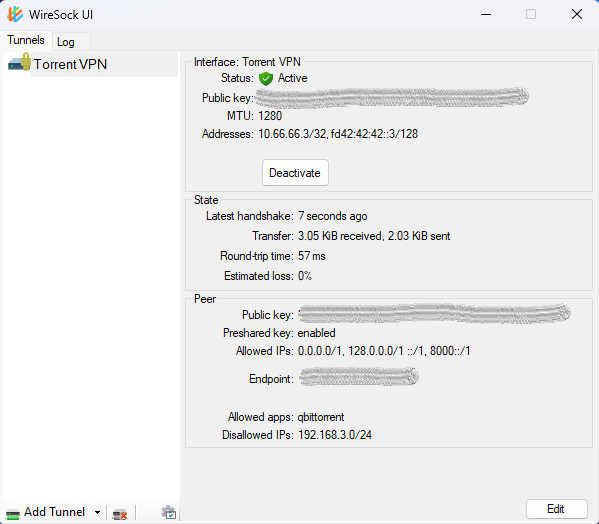
- With WireSock connected, open Windows Network Connections and identify the newly active VPN adapter. Observe its real name on this machine; do not assume it must match a screenshot or an old tunnel name.
- Start qBittorrent, open Tools → Options → Advanced, and select that adapter under Network Interface. Keep the binding to this specific interface rather than Any interface.
- Choose Apply, fully exit qBittorrent, and start it again while the VPN is connected. The official binding procedure includes this restart.
- Reopen the setting to confirm the selection. If transfers do not start, check the adapter, tunnel and server configuration instead of removing the binding to make them work. Recheck the selection after a profile is replaced or the adapter is recreated.
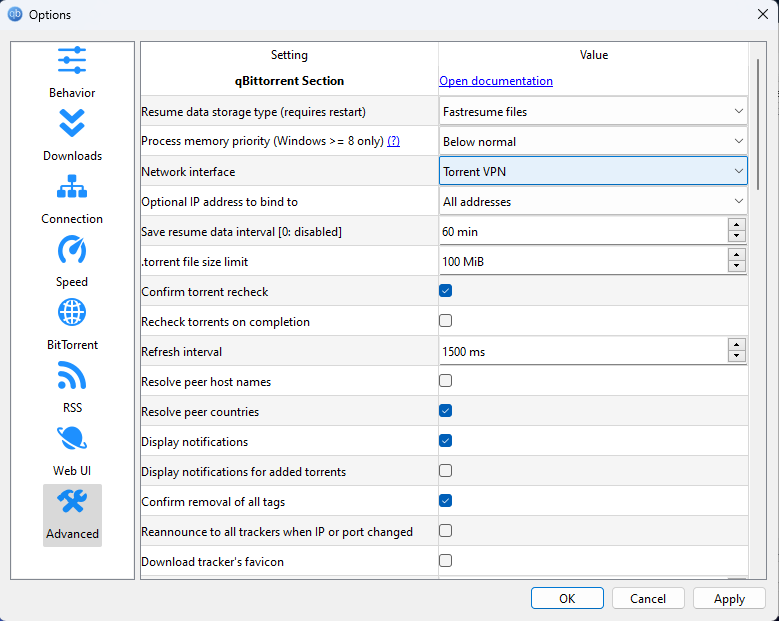
WireSock can leave unselected applications on the ordinary path. Its optional Kill Switch / Network Lock is a separate policy that can block traffic from other applications too. Do not silently enable a system-wide lock while expecting browsing to remain unaffected; choose and test that behavior separately.
Check both connection and disconnection
Use a torrent you are entitled to share, preferably with a peer or tracker you control. Record your WireSockUI, CLI/SDK, qBittorrent and libtorrent versions alongside the adapter and server details. A successful connected-state test is a useful start; the failure cases are what tell you whether the binding behaves as intended.
| State | What to check |
|---|---|
| VPN connected | Peer/tracker traffic uses the expected VPN path. Check an unselected browser separately; its IP is not the torrent client’s IP. |
| Start with VPN off | Start qBittorrent with the saved binding. It should not establish direct external peer/tracker traffic through the ordinary interface. |
| Disconnect or tunnel failure | Observe an active transfer while disconnecting the tunnel. Check for direct fallback, including after the tunnel-owning process exits or the network changes. |
| Reconnect or replace profile | Confirm the intended adapter is still selected and transfers resume through the VPN. Repeat after adapter recreation or software upgrades. |
| IPv4, IPv6 and supporting traffic | Check each enabled address family, tracker/DHT traffic and DNS. Test search plugins, updates and external helpers separately if you use them. |
For an additional endpoint check, use the torrent-address detection function at ipleak.net. Its reported address describes traffic reaching that test service; it does not prove that every peer, DNS lookup or helper is covered. Existing proxy settings in qBittorrent can also change what an endpoint test reports.
When inspecting a capture on the physical interface, distinguish the expected outer WireGuard traffic to your VPN server from direct BitTorrent traffic. A transfer stopping is helpful evidence, but packet and endpoint observations are needed to distinguish a working restriction from a stalled tracker or unreachable peer. Repeat the checks for your own versions and network rather than treating one result as a permanent guarantee.
The adapter selection is qBittorrent’s BitTorrent-session control, not a promise about every process involved in torrenting. DNS may involve the Windows resolver, and search plugins or external helpers can use separate processes. Likewise, a profile’s DNS setting can affect resolution beyond the application rule. Test those paths explicitly when they matter to your privacy requirements.
The useful combination is still straightforward: select qBittorrent in WireSock, bind its BitTorrent session to the VPN adapter, and check what happens when the tunnel disappears. Keeping those three steps distinct makes the setup easier to understand and easier to troubleshoot when a connection stops working.