
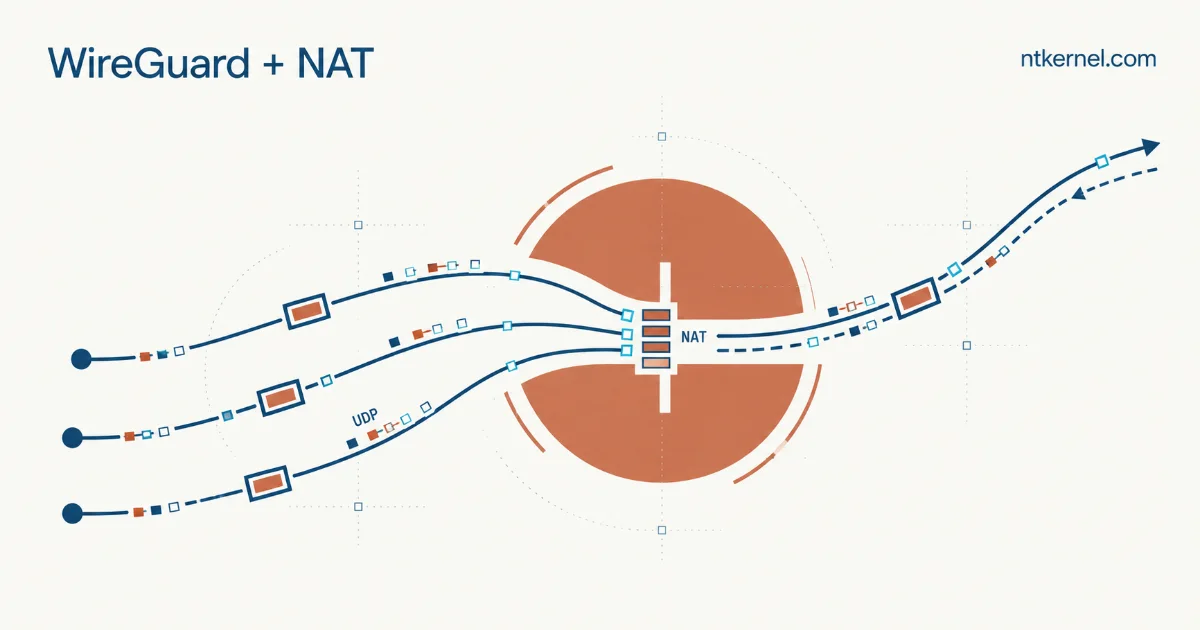
A WireGuard tunnel can complete its handshake and still leave you without internet access. The keys are correct, the server is reachable, and yet the first web page refuses to load. On a cloud VM, that usually means it is time to look beyond the tunnel itself: Linux forwarding, the guest firewall, NAT, and the cloud network all have a part to play.
The Problem
This post grew out of a 2021 Reddit discussion about a Windows client connecting to an Ubuntu server on Oracle Cloud’s free tier. I had encountered similar trouble in my own experiments and shared the rules that helped me. When I returned to the setup in 2023, I found myself searching for my own reply. That was a good reason to put the explanation here.
The useful distinction is between receiving the encrypted UDP packet and forwarding the decrypted packet. Opening the WireGuard UDP port solves the first part. It does not, by itself, turn the Ubuntu instance into a working gateway.
The Solution
The example below is an IPv4 gateway for trusted VPN clients: a client sends traffic through wg0, Ubuntu forwards it through its cloud-facing interface, and masquerading replaces the client’s source address with that interface’s IPv4 address. OCI then maps the instance’s private address to its assigned public IPv4 address for internet traffic. A routed site-to-site or VCN design needs its own routes and return-path policy; it is not the same recipe.
The sample values are wg0, 10.66.66.0/24, UDP port 59075, and cloud-facing interface ens3. Replace them to match your installation. First check the interface and confirm that the server itself has working IPv4 internet access:
ip -4 address
ip -4 route
ip -4 route get 1.1.1.1
Check the OCI side first
- For this directly reachable server, use a public IPv4 address, a public subnet and an enabled internet gateway with the appropriate
0.0.0.0/0route. An outbound NAT gateway alone does not make a private instance accept incoming WireGuard connections. See Oracle’s internet gateway guidance. - Allow inbound UDP destination port
59075from the intended client source addresses in the applicable OCI security rules, and allow the outbound traffic the gateway needs. Security lists and NSGs contribute to the applicable rules; they do not each need an identical rule. Stateful rules track return traffic. Stateless rules need explicit permission in both directions, and take precedence if the same traffic also matches a stateful rule. - Oracle instructs you to disable the VNIC’s source/destination check when it forwards traffic, including NAT. Review the gateway VNIC’s Skip source/destination check setting as described in the VNIC documentation. This setting does not enable Linux forwarding or open the guest firewall.
Cloud permission and guest permission are separate. Keep a working SSH session and a recovery path while adjusting the guest firewall. Preserve OCI image rules for SSH, storage and platform services; do not flush the existing ruleset.
Enable IPv4 forwarding
Linux must be allowed to pass packets between interfaces. After checking that this instance is intended to act as a router, create a dedicated persistent setting and apply that file:
printf '%s\n' 'net.ipv4.ip_forward=1' | sudo tee /etc/sysctl.d/70-wireguard-routing.conf
sudo sysctl -p /etc/sysctl.d/70-wireguard-routing.conf
sysctl -n net.ipv4.ip_forward
The last command should print 1. Changing ip_forward also resets some IPv4 settings to host/router defaults, so review any custom network sysctls on an existing gateway. The firewall helper below checks forwarding but does not toggle it at tunnel shutdown: other services may rely on it.
Keep the peer configuration consistent
These minimal configurations show how the addresses and routes fit together. Replace every angle-bracket placeholder with your own key or endpoint; keep private keys private. The WireGuard quick start covers key creation and the basic setup. On the Ubuntu server, /etc/wireguard/wg0.conf contains:
[Interface]
PrivateKey = <server-private-key>
Address = 10.66.66.1/24
ListenPort = 59075
PostUp = /etc/wireguard/helper/wg0-firewall.sh up
PostDown = /etc/wireguard/helper/wg0-firewall.sh down

[Peer]
PublicKey = <client-public-key>
AllowedIPs = 10.66.66.2/32
On the Windows client, the corresponding tunnel is:
[Interface]
PrivateKey = <client-private-key>
Address = 10.66.66.2/32

[Peer]
PublicKey = <server-public-key>
Endpoint = <server-public-ip>:59075
AllowedIPs = 0.0.0.0/0
The client’s 0.0.0.0/0 selects IPv4 traffic for the server peer. The server’s 10.66.66.2/32 identifies that particular client, not a default route back through it. Give each additional client its own address and peer entry. AllowedIPs also validates the source addresses a peer may send; keys and address assignments must agree.
Configure a DNS resolver on the client that remains reachable with the tunnel active; the sample does not install a DNS service on the VPN server. If the client is behind NAT and needs to retain its mapping while idle, PersistentKeepalive = 25 in its server peer entry can help. It is optional, not a substitute for fixing routing.
Add the guest firewall rules
This helper is for a host whose rules you manage directly with iptables, including the iptables-nft backend. If UFW, firewalld or another firewall manager owns the policy, express the equivalent rules there instead of layering this script over it. Do not switch backends with the tunnel running.
The four rules do only the following: masquerade the VPN subnet on the uplink, accept the WireGuard UDP listener, permit client traffic from wg0 to that uplink, and permit established/related traffic back. They do not add blanket access to services on the server or accept arbitrary new connections from the uplink to VPN clients. They also do not restrict destinations to the public internet: trusted clients can reach destinations routed through that uplink, potentially including VCN resources. Add destination restrictions if that is not your intended policy.
The existing host OUTPUT policy must also permit the server’s own traffic, including WireGuard replies. A restrictive OUTPUT policy needs corresponding allowances; this helper does not replace it.
Save the following as wg0-firewall.sh. It inserts its rules before existing terminal rejects, so review this explicit allowance against your host policy. Its tagged rules are reserved for this one configuration; it leaves other rules in place.
Show the IPv4 firewall helper
#!/bin/bash
set -euo pipefail
umask 077

WAN_IF=ens3
WG_IF=wg0
VPN_NET=10.66.66.0/24
WG_PORT=59075

[[ $EUID == 0 ]] || { echo "Run as root." >&2; exit 1; }
[[ $# == 1 && ( $1 == up || $1 == down ) ]] || {
    echo "Usage: $0 up|down" >&2; exit 2;
}
for tool in iptables flock ip sysctl; do command -v "$tool" >/dev/null; done
IPT=$(command -v iptables)
# Serialize this helper's invocations; /run is owned by root.
exec 9>/run/ntkernel-wg0-firewall.lock
flock -x 9

# Reserve these comments for this configuration. No spaces in these values.
rules=(
    "nat POSTROUTING -s $VPN_NET -o $WAN_IF -m comment --comment ntkernel-wg0-nat -j MASQUERADE"
    "filter INPUT -i $WAN_IF -p udp --dport $WG_PORT -m comment --comment ntkernel-wg0-listen -j ACCEPT"
    "filter FORWARD -i $WG_IF -o $WAN_IF -s $VPN_NET -m conntrack --ctstate NEW,ESTABLISHED,RELATED -m comment --comment ntkernel-wg0-out -j ACCEPT"
    "filter FORWARD -i $WAN_IF -o $WG_IF -d $VPN_NET -m conntrack --ctstate ESTABLISHED,RELATED -m comment --comment ntkernel-wg0-return -j ACCEPT"
)
rule() {
    local action=$1 index=$2
    local -a spec
    read -r -a spec <<< "${rules[index]}"
    "$IPT" -w 5 -t "${spec[0]}" "$action" "${spec[1]}" "${spec[@]:2}"
}
has_rule() {
    local rc
    if rule -C "$1" 2>/dev/null; then return 0; else rc=$?; fi
    # -C returns 1 for an absent rule; other errors must stop the operation.
    if (( rc == 1 )); then return 1; fi
    echo "Cannot inspect firewall rule $1 (exit $rc)." >&2
    exit "$rc"
}

if [[ $1 == down ]]; then
    for i in "${!rules[@]}"; do
        while has_rule "$i"; do rule -D "$i"; done
    done
    exit 0
fi

ip link show dev "$WAN_IF" >/dev/null
ip link show dev "$WG_IF" >/dev/null
[[ $(sysctl -n net.ipv4.ip_forward) == 1 ]] || {
    echo "Enable IPv4 forwarding before starting the VPN." >&2; exit 1;
}

added=()
rollback() {
    local rc=$? j
    trap - EXIT
    if (( rc != 0 )); then
        for (( j=${#added[@]}-1; j>=0; j-- )); do
            rule -D "${added[j]}" || echo "Cleanup failed; run $0 down." >&2
        done
    fi
    exit "$rc"
}
trap rollback EXIT
trap 'exit 130' INT
trap 'exit 143' TERM
for i in "${!rules[@]}"; do
    if ! has_rule "$i"; then
        rule -I "$i"
        added+=("$i")
    fi
done
trap - EXIT
Install the reviewed file in a root-owned directory and restrict configuration access:
sudo install -d -o root -g root -m 700 /etc/wireguard/helper
sudo install -o root -g root -m 700 wg0-firewall.sh /etc/wireguard/helper/wg0-firewall.sh
sudo chown root:root /etc/wireguard/wg0.conf
sudo chmod 600 /etc/wireguard/wg0.conf
The PostUp and PostDown entries above are wg-quick hooks. Repeating the helper’s up action does not add duplicate copies. A failed startup attempts to remove only rules added by that invocation. The down action removes exact matching tagged rules and works after wg0 has disappeared. Errors are reported; this is not an atomic firewall transaction or protection against abrupt process termination. If cleanup fails, inspect the rules and run the helper’s down action again.
Stop the tunnel with the old configuration before changing the interface, subnet, port or helper. Otherwise the new cleanup rules will not match the old ones. When replacing the earlier add-nat-routing.sh/remove-nat-routing.sh version, use its old shutdown hook and check for leftover duplicates, including IPv6 rules. The new helper deliberately does not remove untagged rules belonging to another setup. Keep these hook-managed rules out of a separate persistent firewall snapshot, or they can return independently of the tunnel.
sudo wg-quick up wg0
sudo wg show wg0
sudo iptables -vnL INPUT
sudo iptables -vnL FORWARD
sudo iptables -t nat -vnL POSTROUTING
# When finished:
sudo wg-quick down wg0
Treat IPv6 as a separate part of the design
This helper changes IPv4 only. A private fd42:42:42::/64 prefix is a Unique Local Address range; assigning it does not provide a globally routed IPv6 path. A dual-stack gateway needs a deliberate IPv6 addressing/routing plan, forwarding and firewall policy, OCI support and matching client routes.
The IPv4 route 0.0.0.0/0 does not itself carry IPv6; the client’s firewall policy determines what happens to native IPv6. In the official WireGuard for Windows client, a single peer with a /0 AllowedIPs entry enables its automatic kill-switch firewall, which also blocks untunneled IPv6. Other clients and configurations may let IPv6 use the ordinary connection. If your goal is to carry all internet traffic through the VPN, either configure and test IPv6 end to end or verify that the chosen client blocks it from bypassing the tunnel. Adding ::/0 without a working IPv6 path is not a solution.
Conclusion
The helpful question is not simply “is WireGuard connected?” but “where does this packet stop?” Work outward from the tunnel, rather than changing several layers at once:
- No recent handshake after generating traffic: check endpoint and keys, the UDP port, OCI ingress and guest INPUT policy. Masquerading decrypted client traffic will not fix an unreachable WireGuard listener.
- A handshake, but no IPv4 egress: check the client routes, server peer AllowedIPs, forwarding setting, FORWARD counters and masquerade rule, then the OCI path and return traffic. Confirm that the instance itself can reach the destination.
- IP connections work but names fail: check the client’s DNS selection and reachability before changing NAT rules.
- Small requests work but larger transfers stall: investigate MTU/path-MTU discovery and required ICMP handling; a successful handshake does not test large data packets.
Once those pieces agree, the setup becomes much easier to understand. The tunnel provides the protected link; the routing and firewall policy determine what you can do through it. If you run into a different failure, share the relevant routes and rule counters along with the symptoms, with keys and other sensitive information removed.