
The move to working from home in 2020 made remote access an everyday requirement. Remote Desktop is convenient: your applications and files stay on the remote PC, and you work with them almost as if you were sitting in front of it. The less attractive part is exposing that PC’s RDP service directly to the Internet. An SSH tunnel gives us another way in, with public-key authentication before the RDP connection can even reach the machine.
The example below uses Windows OpenSSH, with the SSH endpoint and RDP host on the same Windows PC. A separate SSH gateway would need its own network and access-control design.
What does the SSH tunnel protect?
RDP security involves more than a strong password. Keep Windows patched, retain Network Level Authentication (NLA), limit who may sign in, and check the remote computer’s identity. A tunnel reduces direct exposure of the RDP port; it does not repair an RDP vulnerability or protect a compromised client or server. SSH itself becomes an Internet-facing service that also needs updates and restricted access.
CVE-2019-9510 illustrates a different risk: an attacker with access to an unattended, already-connected RDP client could interrupt its network connection and regain an unlocked remote session on reconnection. Lock the local client when leaving it unattended, too; the SSH tunnel does not remove this risk.
Think of the connection as three steps: RDP client → 127.0.0.1:3333 → SSH tunnel → 127.0.0.1:3389 on the Windows host. The two loopback addresses belong to different computers. SSH authenticates the tunnel account; RDP then authenticates the Windows desktop account. Those checks serve different purposes and should not be described as a complete MFA solution by themselves.
What is OpenSSH?
OpenSSH provides encrypted remote connections and TCP forwarding. Microsoft ships an optional OpenSSH client/server feature starting with Windows 10 build 1809 and Windows Server 2019; its installation guide covers the in-box version serviced through Windows Update. The GitHub release and the Windows optional feature can have different versions. Check the client you run with ssh -V; identify the host’s sshd version separately rather than inferring either version from the Windows name.
Prepare the Windows host
Use a Windows edition that can host Remote Desktop, such as Pro, Enterprise, Education or Windows Server; Windows Home can be an RDP client but not the built-in RDP host. Enable RDP and allow only the desktop accounts that need it. This example uses a separate standard local Windows account, rdptunnel, for SSH. It does not need membership in Administrators or Remote Desktop Users merely to forward TCP; the account used inside RDP needs the appropriate desktop sign-in rights.
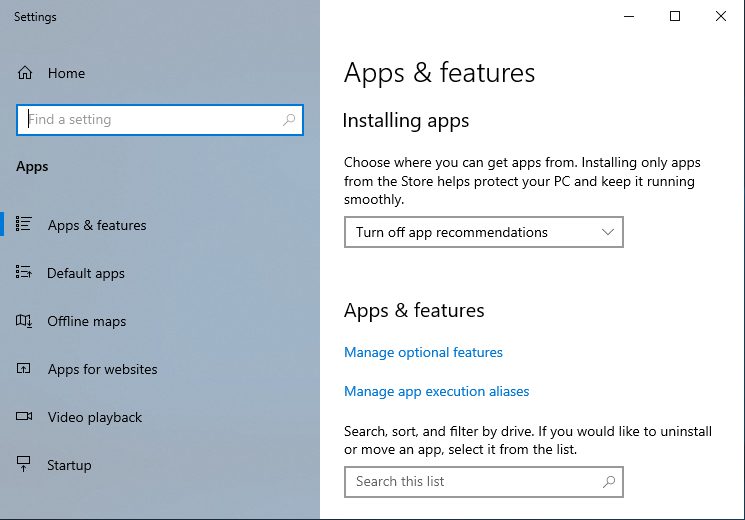
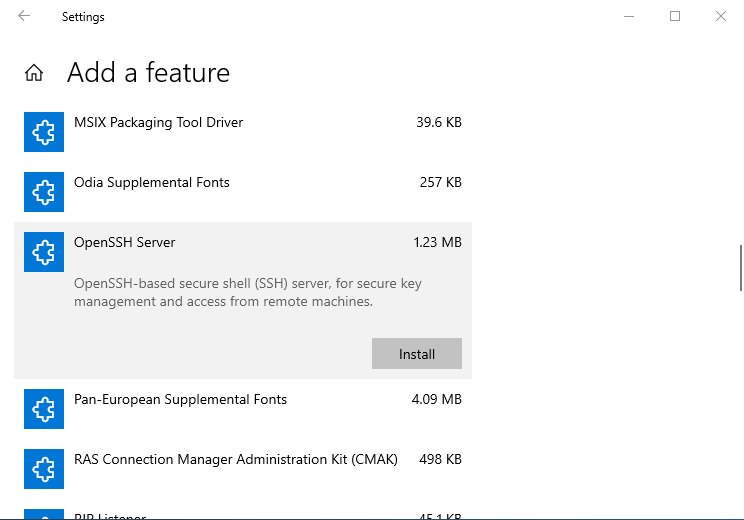
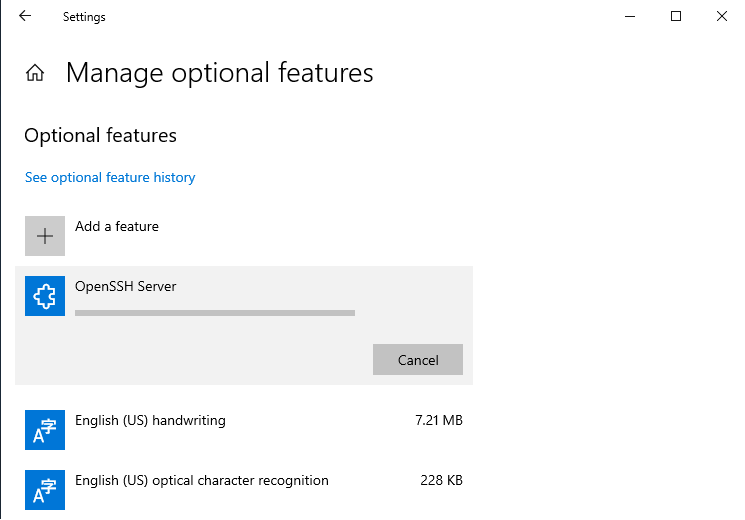
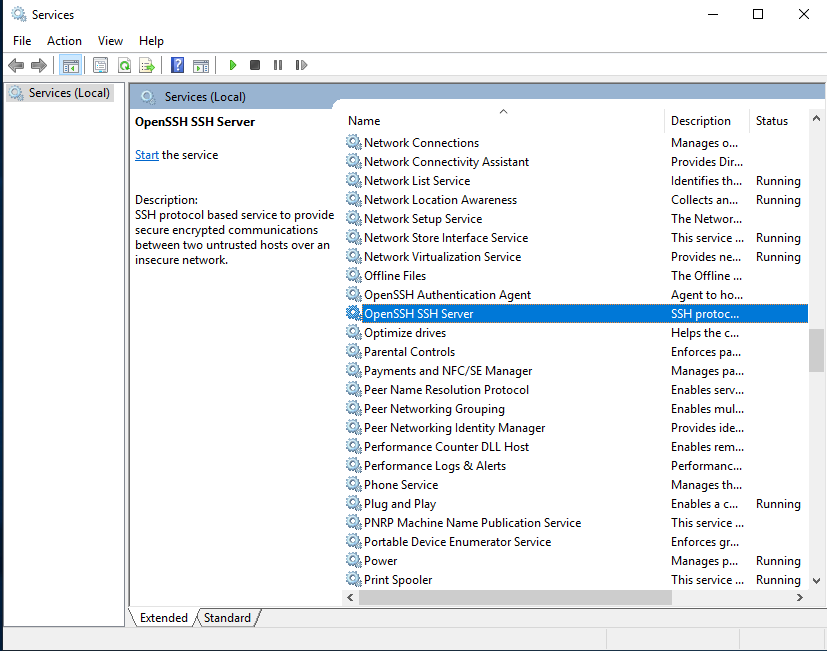
Install OpenSSH Server on the host from an elevated PowerShell session if the feature is absent, then start its service. Administrative rights are needed for installation and service/configuration changes, not for running the client tunnel:
# On the Windows host, in elevated PowerShell
Get-WindowsCapability -Online -Name OpenSSH.Server~~~~0.0.1.0
# Run the next line only if the feature is not installed.
Add-WindowsCapability -Online -Name OpenSSH.Server~~~~0.0.1.0
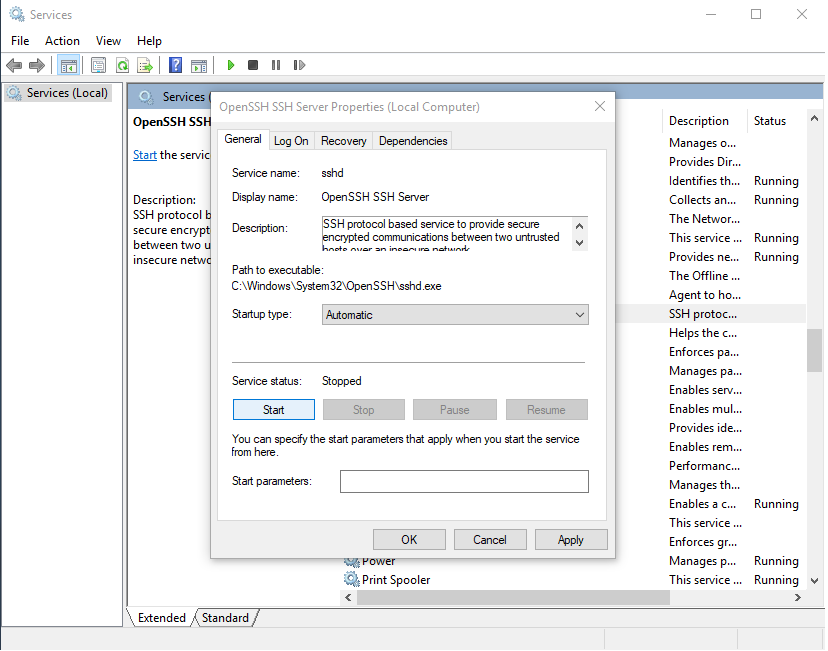
Set-Service -Name sshd -StartupType Automatic
Start-Service sshd
Check the firewall rule created by installation and restrict SSH ingress to the networks that need it where practical. If your host is behind a router, forward only the chosen SSH port to the host. Remove the public RDP mapping and check both IPv4 and IPv6 firewall exposure: an IPv4 NAT rule says nothing about IPv6 access. Do not disable the firewall. Keep a local console or another working recovery path while changing authentication.
Generate the key on the client
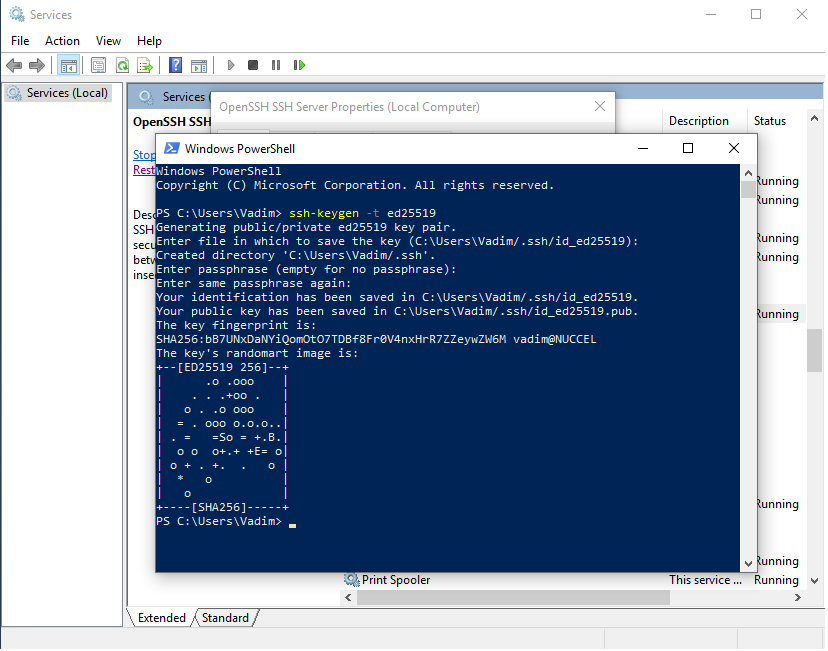
On the computer you will connect from, generate a dedicated key, choose a passphrase, and keep its private half there. The following PowerShell example uses a distinct filename so an existing default key is not silently replaced:
# On the client, as your normal user
New-Item -ItemType Directory -Force -Path "$env:USERPROFILE\.ssh" | Out-Null
ssh-keygen -t ed25519 -f "$env:USERPROFILE\.ssh\rdp_tunnel_ed25519"
Get-Content -LiteralPath "$env:USERPROFILE\.ssh\rdp_tunnel_ed25519.pub"
Copy only the complete .pub line to the host using a trusted channel. Do not generate the client key on the server and then move its private file between machines. Protect and back up the private key; revoke a lost key by removing its public line on the server. Microsoft’s Windows key-management guide also explains passphrases and the optional client-side ssh-agent. Agent forwarding is unnecessary here.
Put the public key in the right account
Sign in locally as rdptunnel once to create its profile. In that account’s %USERPROFILE%\.ssh\authorized_keys, put the client’s public key on a single line. Create the folder/file if needed; append to an existing file rather than overwriting other authorized keys. Use plain text without a UTF-16 encoding or a .txt extension. Check that the file is owned by the intended user and cannot be modified by unrelated users. The Windows OpenSSH permission guide covers the file and directory requirements.
Administrator accounts use a different key location in the default Windows configuration: %ProgramData%\ssh\administrators_authorized_keys. This is a shared administrator-key file; do not put a standard user’s key there. If you deliberately use this administrator path, the ACL must contain only SYSTEM and Administrators. These correctly quoted, locale-independent PowerShell commands grant those entries and display the result:
# Administrator-account alternative only; run elevated on the host.
# The file must already contain the intended public key(s).
$keyFile = "$env:ProgramData\ssh\administrators_authorized_keys"
icacls.exe $keyFile /inheritance:r
icacls.exe $keyFile /grant:r '*S-1-5-18:(F)' '*S-1-5-32-544:(F)'
icacls.exe $keyFile
Inspect that final ACL. /inheritance:r removes inherited entries; /grant:r replaces grants for the named SIDs. Neither removes an unrelated explicit entry. Remove any extra entries before using the administrator file and check ownership as well. Quote permission arguments containing parentheses so PowerShell passes them to icacls as text. See icacls for the ACL switches.
Check authentication before disabling passwords
From the client, first test the key while you still have the console/recovery path. Use the tunnel command in the next section: its PreferredAuthentications=publickey option prevents a password fallback from looking like a successful key test. Verify the SSH host-key fingerprint independently: on the host, an administrator can display the Ed25519 host key’s fingerprint with the command below. Compare it with the prompt shown on the client over a trusted channel. Do not bypass the check with StrictHostKeyChecking=no.
# On the Windows host
ssh-keygen -lf "$env:ProgramData\ssh\ssh_host_ed25519_key.pub"
Edit %ProgramData%\ssh\sshd_config with administrator rights. Once key login works, disable SSH password authentication for the intended account with PasswordAuthentication no. Confirm that PubkeyAuthentication yes and TCP forwarding are allowed. Keep global settings before any Match block; placing a setting under an unrelated match can change which users it affects. The Windows server configuration guide explains account matching and key-file behavior.
For a dedicated tunnel account, OpenSSH documents AllowTcpForwarding local and PermitOpen 127.0.0.1:3389 to limit TCP forwarding, and MaxSessions 0 to prohibit shell/subsystem sessions while permitting forwarding. Restricting forwarding alone is insufficient if the same user can run arbitrary shell commands. These are policy ingredients, not a tested drop-in configuration for every Windows build: validate the effective Match User rdptunnel settings, ensure unauthorized destinations and shell access are rejected, and avoid locking out other administrators. See the sshd_config reference.
# On the host, elevated; do not restart if validation fails.
& "$env:WINDIR\System32\OpenSSH\sshd.exe" -t
if ($LASTEXITCODE -ne 0) { throw 'sshd_config validation failed' }
Restart-Service sshd
The executable path above is for the in-box optional feature; adjust it if you installed a different distribution. A successful syntax check is not proof of effective user restrictions. Reconnect with the key after restarting; a password-only test for the restricted account should fail. Do this before exposing the SSH endpoint externally. Disabling SSH passwords does not disable the separate Windows credentials used by RDP.
Start the tunnel, then Remote Desktop
Suppose the router maps rdp.example.com:222 to port 22 on the Windows host. Replace that reserved example name, port and account with your own. On the client, open PowerShell and run this as a normal user:
ssh -N -T `
  -o PreferredAuthentications=publickey `
  -o StrictHostKeyChecking=ask `
  -o ExitOnForwardFailure=yes `
  -o ServerAliveInterval=30 -o ServerAliveCountMax=3 `
  -o IdentitiesOnly=yes `
  -i "$env:USERPROFILE\.ssh\rdp_tunnel_ed25519" `
  -p 222 -L 127.0.0.1:3333:127.0.0.1:3389 `
  rdptunnel@rdp.example.com
The backticks at the ends of the lines are PowerShell continuation characters; leave no spaces after them. This is one command. You can also enter it on one line with the backticks removed.
The -L option binds port 3333 to IPv4 loopback on the client. Traffic arriving there is carried through SSH; the SSH server opens the connection to its own 127.0.0.1:3389. Do not replace the first address with 0.0.0.0 or use -g, which could expose the local tunnel to other machines. The ssh manual describes these options. Loopback binding still permits other local processes to use the listener, so use a trusted client computer.
-N means no remote command and -T means no pseudo-terminal; neither backgrounds the process. Keep this window open. After authentication, a quiet window is normal. ExitOnForwardFailure=yes exits when SSH reports a forwarding setup failure, such as a rejected local bind. Do not rely on this option to detect duplicate tunnel processes: Windows OpenSSH can allow a second listener on the same port. Keep just one tunnel process per local port. It does not test whether the remote RDP service is reachable: that connection is attempted when the RDP client uses the tunnel. The client configuration reference makes this distinction.
Once SSH has authenticated and is listening, open a second PowerShell window and launch Remote Desktop:
mstsc.exe /v:127.0.0.1:3333Use the remote Windows machine’s desktop credentials, not automatically the rdptunnel account. A loopback address can cause the RDP certificate name to differ from the address entered in the client. Check the certificate and expected remote identity; do not make accepting an unknown certificate part of the routine. If authentication or RDP connection fails, read the SSH window’s error messages and check the host’s RDP/NLA policy and firewall.
When finished, close Remote Desktop and press Ctrl+C in the SSH window. Closing RDP alone does not stop SSH. After a broken connection, re-establish the tunnel before reconnecting RDP; the keepalive options detect an unresponsive SSH peer but do not reconnect it. Keeping SSH in its own window makes the tunnel lifecycle easy to follow. Test background launch behavior on the actual Windows SSH build before automating it.
Windows 10 setup screenshots
These screenshots show Windows 10 LTSC 2019 and the earlier administrator-account setup. For key handling and the connection command, follow the steps above.
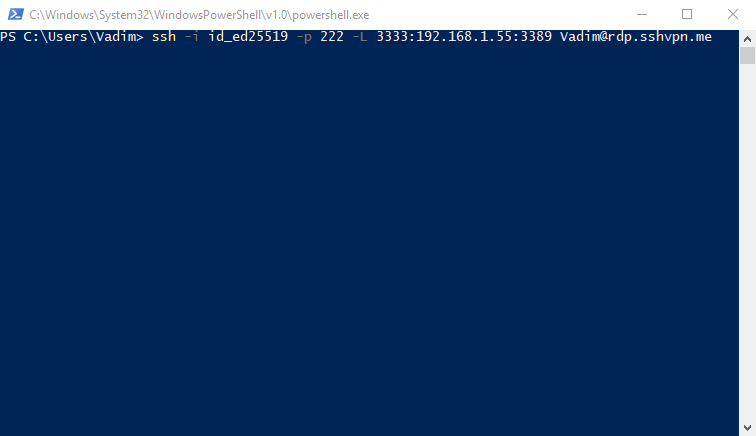
ssh -i id_ed25519 -p 222 -L 3333:192.168.1.55:3389 Vadim@rdp.sshvpn.me 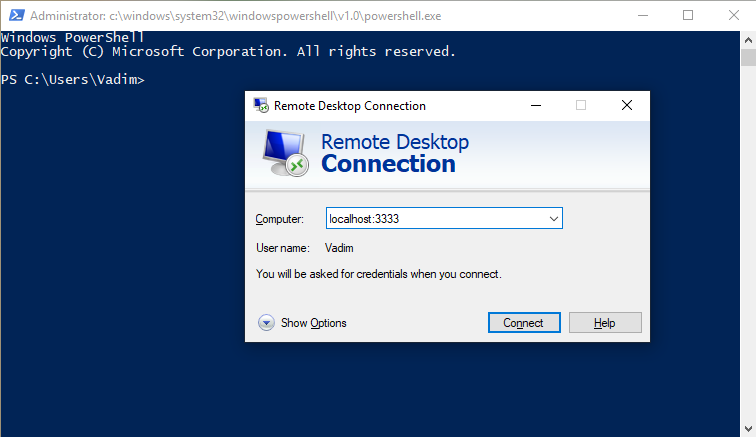
OpenSSH and WSL
A Linux OpenSSH server inside WSL is another possible endpoint, but it introduces a separate Linux service and networking boundary. Modern WSL 2 supports systemd, so Task Scheduler is no longer the only way to manage services inside the distribution. That alone does not establish unattended Windows boot startup or inbound reachability. In WSL, 127.0.0.1 may refer to the Linux environment rather than the Windows RDP host, depending on networking mode. The destination, firewall and lifecycle need a separate tested setup; the native-Windows command above is not a WSL recipe. No general CPU or security advantage is claimed here.
The trade-off: TCP forwarding only
The ssh -L tunnel carries TCP. RDP can also use UDP in suitable deployments, but this command does not carry that transport. The session therefore uses the TCP path through SSH, and behavior on a lossy or high-latency link may differ from a setup that supports RDP’s UDP transport. There is no measured performance comparison here. If UDP support or centrally managed MFA/access policy matters, evaluate an appropriate VPN or Remote Desktop Gateway deployment rather than assuming this small tunnel replaces all of those functions.